

Google Fonts via the CDN
In this approach, we load Google Fonts directly from Google’s CDN using a <link> tag. This is still one of the simplest and most reliable ways to add custom fonts to a Tailwind CSS project.
Because Google Fonts is used by tens of millions of websites, there’s a strong chance your visitors already have the font cached in their browser. When that happens, the font loads instantly without an extra download, which helps reduce bandwidth usage and improves perceived performance.
How to use Google Fonts with Tailwind CSS
Step 1: Generate Google Font <link>
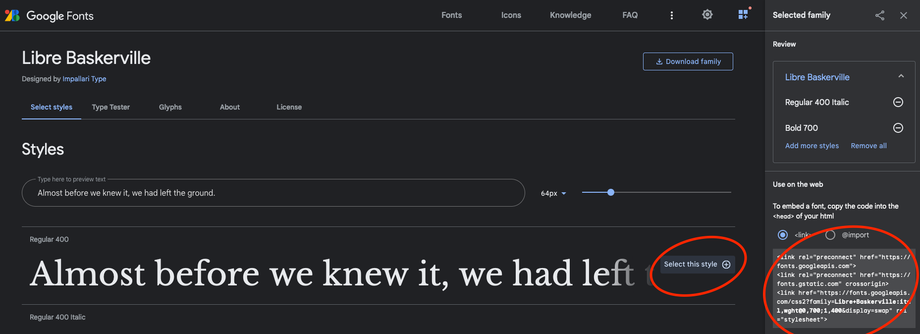
Head to https://fonts.google.com and choose the font family you want to use.
Select only the styles and weights you actually need. Fewer weights means smaller downloads and faster page loads.
Once selected, Google will generate a <link> tag for you.
Step 2: Add the font to your <head>
Copy the generated <link> tag and place it inside the <head> of your website or application.
A typical example looks like this:
<!DOCTYPE html>

<html lang="en">
    <head>
        <link rel="preconnect" href="https://fonts.googleapis.com">
        <link rel="preconnect" href="https://fonts.gstatic.com" crossorigin>
        <link href="https://fonts.googleapis.com/css2?family=Inter:wght@400;600;700&display=swap" rel="stylesheet">
    </head>

    ...
Tailwind CSS v4 and newer (using global.css)
In Tailwind v4, fonts are configured directly in CSS using global.css. You can load Google Fonts either via the HTML <head> or directly in your CSS file. Both work, but there is a small performance difference.
Step 3: Load the Google Font
You have two options. Pick one.
Option A: Load the font in the <head> (best performance)
This is the recommended approach if you have access to your HTML or layout file.
<link rel="preconnect" href="https://fonts.googleapis.com">
<link rel="preconnect" href="https://fonts.gstatic.com" crossorigin>
<link href="https://fonts.googleapis.com/css2?family=Inter:wght@400;600;700&display=swap" rel="stylesheet">
Using <link rel="preconnect"> allows the browser to start the connection to Google Fonts early, which can slightly improve load times.
Option B: Load the font in global.css
If you’d rather keep everything in CSS, you can import the font directly in your global stylesheet.
@import url("https://fonts.googleapis.com/css2?family=Inter:wght@400;600;700&display=swap");

/* Tailwind must come after any URL imports */
@import "tailwindcss";
This works perfectly fine, but you miss out on the preconnect optimisation that’s only available when loading fonts in the <head>. For most sites the difference is small, but it’s worth knowing.
If you load the font this way, do not also include the <link> tag.
Step 4: Configure the font in Tailwind using @theme
Regardless of how the font is loaded, you still need to tell Tailwind how to use it.
Add the following to global.css:
@theme { --font-inter: "Inter", ui-sans-serif, system-ui, sans-serif; }This defines a reusable font token that Tailwind can reference.
Step 5: Use the font in your UI
You can now apply the font anywhere using Tailwind utilities.
<h1 class="font-[var(--font-inter)] text-4xl"> Hello world </h1>Optional: Make it your default font
If you want this font to be used everywhere by default, override Tailwind’s --font-sans variable instead:
@theme {
  --font-sans: "Inter", ui-sans-serif, system-ui, sans-serif;
}
Then apply it globally:
<body class="font-sans">
  ...
</body>
Tailwind CSS v3 and below
Step 3: Extend tailwind.config.js
Open your tailwind.config.js file and extend the fontFamily section:
const defaultTheme = require("tailwindcss/defaultTheme");

module.exports = {
  theme: {
    extend: {
      fontFamily: {
        sans: ["Inter", ...defaultTheme.fontFamily.sans],
      },
    },
  },
};
This tells Tailwind to use your Google Font first, with system fonts as a fallback.
You can now use the font anywhere with:
<p class="font-sans">
  This text uses Inter
</p>
Tip: Create a Tailwind CSS Font Fallback
Whether you’re on Tailwind v4 or v3, always include a system font fallback. This protects you if a character isn’t available in the Google Font or if the font fails to load for any reason.
Using system fonts as a fallback is considered best practice and helps keep your UI looking consistent across devices.
For more detail on font configuration, check out the official Tailwind docs:
https://tailwindcss.com/docs/font-family
Can I still use tailwind.config.js in Tailwind v4?
Yep, but for fonts, v4’s CSS-first approach with @theme is usually simpler and keeps everything in one place.
Why does my Google Font @import not load?
Because @import url(...) has to be the very first thing in the CSS file, before @import "tailwindcss";.
What if I’m on Next.js?
Next.js often pairs nicely with next/font, but if you’re not using that, the global.css + @theme approach above still works fine.